
100% Free • No signup • Unlimited usage
Pixel to Inches Converter – Simple, Clear and Practical Guide
This pixel to inches converter helps you quickly convert digital pixel values into real-world inches using DPI. However, many users get confused because pixels and inches are not directly related.
That is where this pixel to inches converter becomes useful. No confusion. No manual calculation. Just clear results.
- Free tool
- No limits
- Works instantly
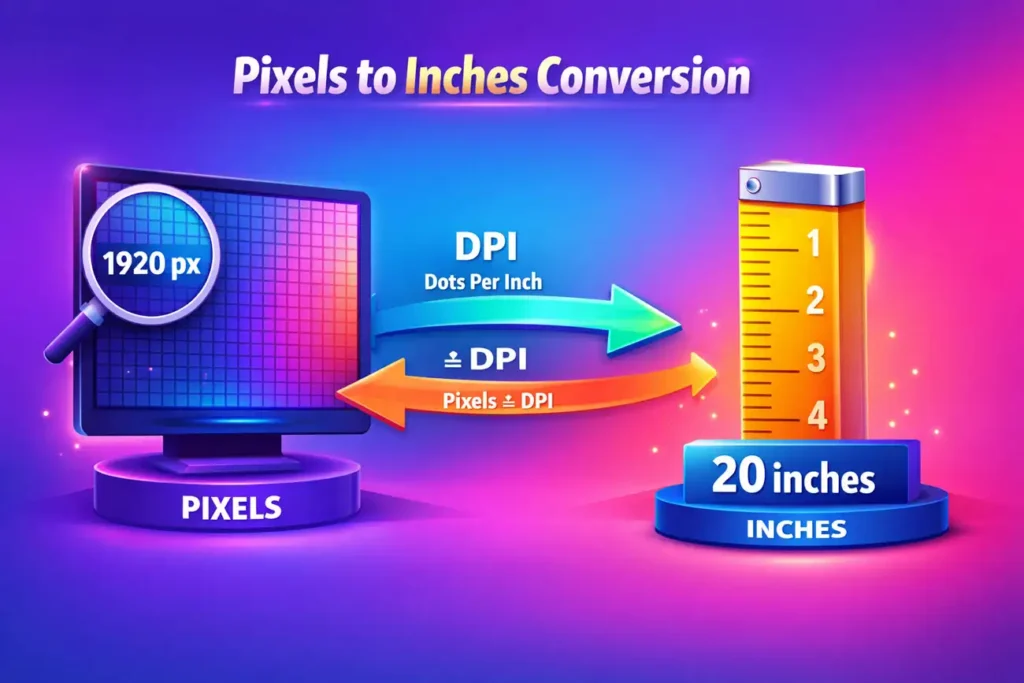
Table of Contents
- What is Pixel to Inches Conversion?
- Simple Formula Explained
- How to Use This Pixel to Inches Converter
- Why DPI Matters in Pixel to Inches Conversion
- Learn More About DPI and Image Resolution
- Pixel to Inches Conversion Examples
- Pixel to Inches Reference Table
- Where You Will Use It
- Why This Pixel to Inches Converter Helps You
- Why Results May Look Different on Other Tools
- FAQ
What is Pixel to Inches Conversion?
Pixels and inches are not the same. Pixels are digital. Inches are physical.
However, they are connected through one important factor: DPI (Dots Per Inch).
Without DPI, conversion is incomplete. That is why many people get wrong results.
Simple Formula Explained
Inches = Pixels ÷ DPI
It looks simple. However, remembering and calculating every time is not practical. That is why using a pixels to inches calculator saves time.
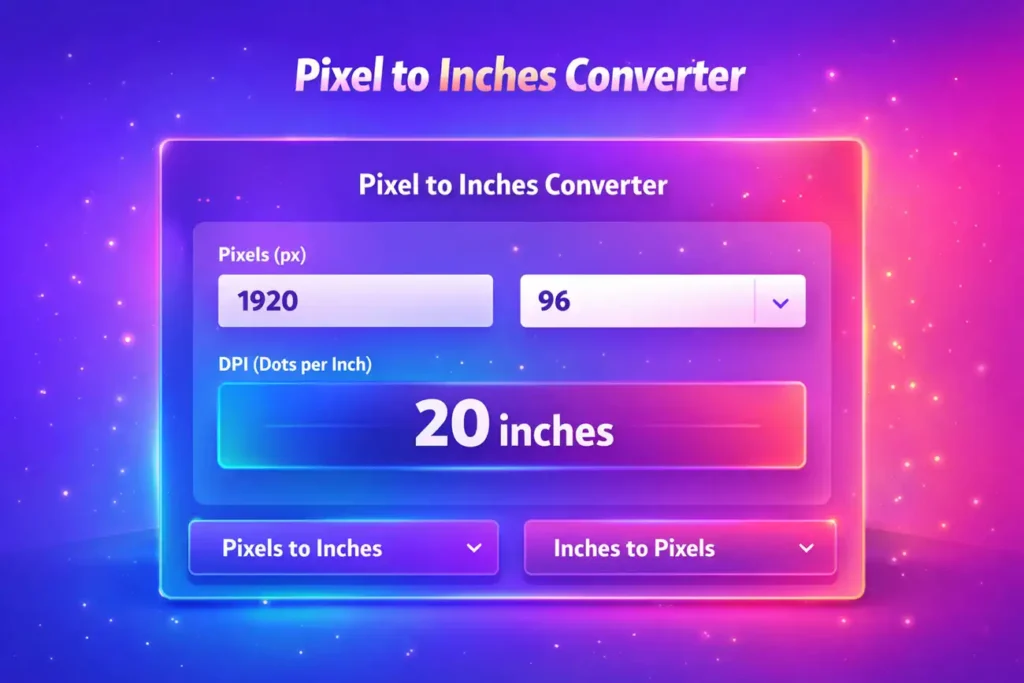
How to Use This Pixel to Inches Converter
Using this tool is very easy:
- Select conversion type
- Enter value
- Adjust DPI if needed
- Get instant result
There is no button. Everything works live. This improves speed and user experience.
Why DPI Matters in Pixel to Inches Conversion
Many users ignore DPI. However, this is the main reason for wrong results.
Example:
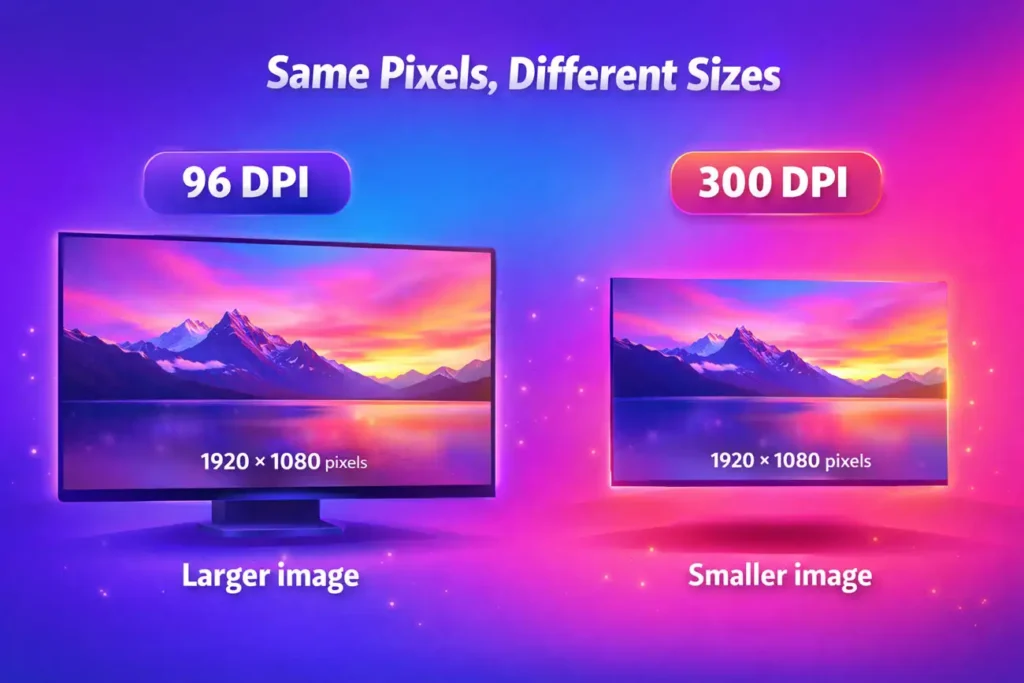
- 1920 pixels at 96 DPI = 20 inches
- 1920 pixels at 300 DPI = 6.4 inches
Same pixels. Different output. That is the power of DPI.
So, if you are working on printing, always use 300 DPI.
Learn More About DPI and Image Resolution
If you want deeper understanding, you can refer to these trusted sources:
Pixel to Inches Conversion Examples. You Will Actually Use
| Pixels | DPI | Inches |
|---|---|---|
| 1080 | 96 | 11.25 |
| 1920 | 96 | 20 |
| 3000 | 300 | 10 |
| 6000 | 300 | 20 |
These are common values used in real projects.
Pixel to Inches Reference Table (Quick Guide)
If you don’t want to calculate every time, this quick table helps.
| Pixels (px) | Inches (at 96 DPI) | Common Use |
|---|---|---|
| 72 px | 0.75 in | Legacy web reference |
| 96 px | 1 in | Standard screen DPI |
| 300 px | 3.125 in | Print reference |
| 1920 px | 20 in | Full HD width |
| 1280 px | 13.33 in | HD screens |
| 375 px | 3.9 in | Mobile screen width |
| 3840 px | 40 in | 4K display |
These values are based on 96 DPI. For printing, results will change.
Where You Will Use This Tool
This is not just a random tool. You will need it in real work:
- Graphic design (Photoshop, Figma)
- Printing banners and posters
- Social media image sizing
- Website images
- Client projects
However, most mistakes happen in printing. So always check DPI before final output.
Why This Pixel to Inches Converter Helps You
Sometimes the problem is not calculation. The problem is confusion.
You try different tools. You get different answers. And then you start doubting yourself.
That is exactly what this tool solves.
-
Saves time
No need to calculate again and again. Just enter value and get result instantly. -
Removes confusion
You clearly understand how DPI affects size. No guessing. -
Accurate results
Based on standard formula. Same logic used in design and printing tools. -
Works for both web and print
You can use 96 DPI for screens and 300 DPI for printing. -
Simple to use
No technical knowledge needed. Clean and direct. -
Builds confidence
Once you understand this, you won’t depend on multiple tools. -
Completely free
Use it anytime without signup or limits.
In short, this tool does not just give answers. It helps you understand the logic behind it.
Why Results May Look Different on Other Tools
Sometimes you try another tool and see a different result. Naturally, you feel something is wrong.
However, most of the time, the issue is not the tool. It is the assumption behind it.
1. Different DPI Values
Our tool uses 96 DPI by default. Other tools may use 72 or 300 DPI.
So even if pixels are the same, the result will change.
Same input. Different DPI. Different output.
2. Rounding Differences
Some tools round numbers differently. Some show more decimals, some show less.
This creates small variations.
3. Most Important – Understanding Pixels vs Inches
Pixels are digital. Inches are physical.
Without DPI, conversion has no meaning.
That is where most confusion happens.
Example
1920 pixels at 96 DPI = 20 inches
1920 pixels at 300 DPI = 6.4 inches
Same pixels. Different size.
So the result is not wrong. The context is different.
Final clarity:
For web → use 96 DPI
For print → use 300 DPI
Frequently Asked Questions
1. How many pixels are in one inch?
It depends on DPI. At 96 DPI = 96 pixels At 300 DPI = 300 pixels
2. How to convert pixels to inches manually?
Use this formula: Pixels ÷ DPI
3. Which DPI is best?
For web: 72 or 96 DPI For print: 300 DPI
4. Why does size change with DPI?
Because DPI defines pixel density. Higher DPI means smaller physical size.
5. Can I convert inches to pixels?
Yes. Multiply inches with DPI.
6. Is this tool accurate?
Yes. It follows standard pixel to inch conversion logic.
Final thought: Pixels alone do not define size. DPI completes the calculation.
Try Our Other Free Image Tools
If you found this image to webp converter useful, you may also like our other free tools for image optimization and conversion.- Image Compressor Tool – Reduce image size without losing quality
- Image Crop Tool – Crop images easily for social media and websites
- Image to Text Converter – Extract text from images instantly
- Base64 to Image Converter – Convert Base64 code into images
- Image to Base64 Converter – Encode images into Base64 format
- Rotate Image Tool – Rotate images online quickly